
To set up an EA on MT4 or MT5, place the compatible file in the platform’s Experts folder, attach it to the correct chart, review its Inputs and enable automated trading at both platform and EA levels. Finally, check the logs to confirm that the software has initialised without errors.
This guide is intended for MetaTrader desktop users on Windows computers or Windows VPSs. Menu names refer to the English interface. Labels and icons can differ between platform versions and brokers.
Before you beginThis is a general installation guide. Follow your EA developer’s instructions for symbols, timeframes, account types, licensing and dependencies. Screenshots are from MetaQuotes’ official MT4/MT5 Help. They show example EAs and may show an older interface. Do not copy the illustrated parameters into your account.
What Do You Need Before Setting Up an EA?
An Expert Advisor, or EA, is a MetaTrader program that performs tasks according to programmed rules. Prepare the following before installation:
- The appropriate MT4 or MT5 desktop terminal for your broker.
- Your account number, server and trading password. An investor/read-only login cannot place trades.
- An EA file from a trusted source, together with its operating instructions.
- The required symbol, timeframe, account mode and broker specifications.
- A suitable
.setpreset and additional files, if supplied by the developer. - A valid licence, account binding and approved WebRequest URLs, where required.
- A suitable demo account and a stable internet connection.
Which EA File Do You Need for MT4 or MT5?
An MT4 EA does not run directly on MT5, and an MT5 EA does not run directly on MT4. Renaming a file or changing its extension does not convert the software.
| Item | MT4 | MT5 |
|---|---|---|
| Compiled file | .ex4 | .ex5 |
| Source code | .mq4 | .mq5 |
| Usual installation folder | MQL4/Experts | MQL5/Experts |
| Toolbar control | AutoTrading | Algo Trading / AutoTrading, depending on version |
If you receive source code only, you may need to compile it in the corresponding MetaEditor to produce the executable file. Ask the developer for assistance if compilation produces errors.
For products obtained through the MQL5 Market, follow the Market’s installation and activation process. The manual file-copying steps below apply to EA files supplied directly.
Step 1: Open the Correct Terminal and Data Folder
Open the MT4 or MT5 terminal in which you intend to run the EA. Confirm that you are logged into the correct account and that market quotes are updating. Select File → Open Data Folder.
If you use several terminals, each may have its own data folder. Installing the file in another terminal’s folder will not make it appear in the current terminal’s Navigator. Open the folder through MetaTrader rather than guessing a location under Program Files.
Step 2: Copy the EA File
For MT4, place the compatible EA in MQL4 → Experts. For MT5, use MQL5 → Experts. The MT5 official documentation identifies this folder as the location for Expert Advisors.
If the package includes Indicators, Libraries or other dependencies, preserve the developer’s folder structure. Do not put every supplied file into Experts.
Step 3: Refresh the Navigator
Return to MetaTrader and select View → Navigator. You can normally use Ctrl + N. Right-click Expert Advisors and select Refresh. Restart the terminal if necessary.
Step 4: Attach the EA to the Correct Chart
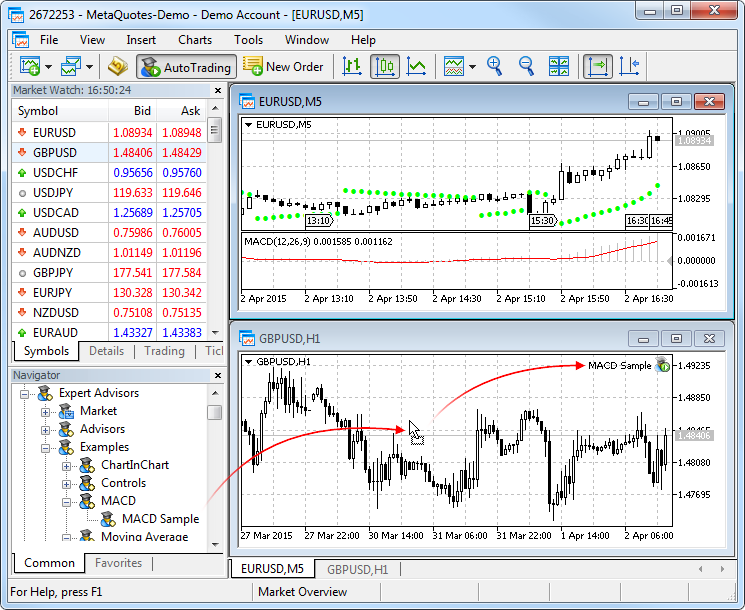
Open a chart for the symbol and timeframe specified by the developer. Drag the EA from Navigator onto the chart, or double-click it. Review permissions and Inputs when the properties window opens.
Similar symbol names can have different specificationsXAUUSD, XAUUSDm and GOLD can differ in tick value, contract size and minimum lot. Do not copy settings based on the name alone. Attaching another EA to the same chart can replace the existing EA.
Step 5: Enable Both Levels of Trading Permission
Enabling the toolbar control alone may be insufficient. Check the platform-wide permission and the individual EA’s permission. Both MT4 and MT5 documentation describe these separate controls.
Open Tools → Options → Expert Advisors and review the platform-wide automated trading setting. Enable the relevant AutoTrading or Algo Trading toolbar control. In the EA properties, review the permission in Common or the corresponding tab.
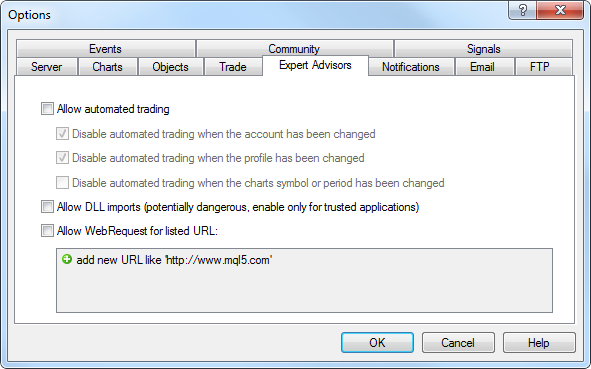
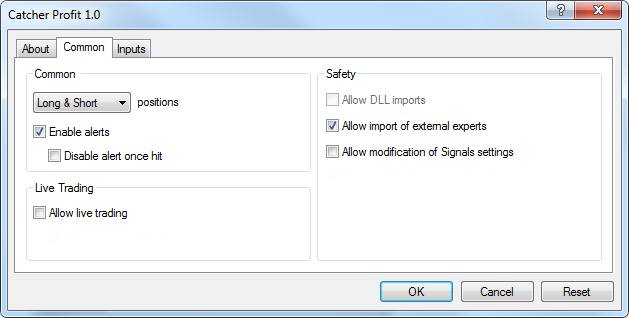

MT4 commonly uses Allow live trading, while MT5 may use Allow Algo Trading or similar wording. Labels and locations can vary by version. Local permissions cannot override a trading restriction imposed by the account or broker.
When Do You Need WebRequest?
An EA may use WebRequest for licence verification, Telegram or another API-based feature. If required, open Tools → Options → Expert Advisors → Allow WebRequest for listed URL and add the exact trusted URL supplied by the developer. Not every EA needs this permission.
Should You Enable DLL Imports?
Enable DLL imports only when the EA requires them and you trust its source. You do not need to enable every permission for a standard installation. MetaQuotes Virtual Hosting does not permit DLL calls; check hosting compatibility for a DLL-dependent EA.
Step 6: Review Inputs and Your .set Preset
If the developer supplies a preset, use Load in the Inputs tab to select the appropriate .set file. Read the loaded values yourself. Loading a preset does not establish that it is suitable for your account.

| Setting category | What to understand |
|---|---|
| Lot / Risk | Fixed lots or risk-based sizing, including the effect of minimum lot size |
| Stop Loss / Exit | How losses are limited and what remains active if the EA stops |
| Trade limits | Maximum simultaneous positions and daily trade limits |
| Spread filter | Whether its unit is points, pips or a price amount |
| Trading session | Whether times use the broker server, UTC or Bangladesh time |
| Magic Number | Whether trade identification can conflict with another EA |
| Licence / Account | The correct account number, product and expiry, where applicable |
These categories are examples; input names differ between EAs. Read the manual before increasing lot size or changing an unfamiliar risk setting.
Step 7: Verify That the EA Has Started
After saving the settings, check the EA name or status on the chart. Open the Experts and Journal logs. These tabs are usually available in Toolbox on MT5 and the Terminal panel on MT4.
- The correct account and server are selected.
- Quotes are updating and the terminal is connected.
- The chart, symbol and timeframe match the EA’s instructions.
- Trading is permitted at both platform and EA levels.
- Inputs, preset and licence status are correct.
- Logs show no initialisation or permission errors.
Not necessarily. The EA may be waiting for a signal, acceptable spread, trading session or another condition. Avoid repeatedly changing settings without evidence of a fault.
Step 8: Observe the EA on a Demo Account
Monitor entries, position size, Stop Loss, exits and error logs. If the EA supports it, use the Strategy Tester to examine behaviour on historical data. Some API-dependent or licensed EAs have testing restrictions.
Demo and live execution can differ. Correct installation or a successful backtest does not guarantee future profit.
Running an EA on a VPS and Monitoring It on Mobile
In a normal desktop setup, the terminal, connection and necessary permissions must remain active for the EA to make new decisions and perform local management tasks. Shutting down the computer, entering sleep mode or closing the terminal stops those local EA activities.
Stop Loss, Take Profit and pending orders already accepted by the broker may remain active on its server according to their conditions.
Computer / Windows VPS
Keep MetaTrader desktop and the EA running. Check power, sleep settings and network connectivity.
MetaTrader Mobile
Review account positions and history. These desktop EA installation steps do not apply to the mobile app.
A Windows VPS can be used like a Windows computer. MetaQuotes’ built-in Virtual Hosting is different: charts and settings must be transferred through migration/synchronisation. After changes, synchronise again as needed and check hosting logs.
Confirm that running environments are not unintentionally placing duplicate trades from the same EA locally and remotely.
EA Not Working? Common Problems and Checks
| Problem | What to check first |
|---|---|
| EA missing from Navigator | The correct terminal’s Experts folder, Refresh and compiled file |
| EA will not attach | MT4/MT5 compatibility, dependencies, compilation/runtime logs and CPU compatibility |
| Trading disabled | Global permission, EA permission, account restrictions and read-only login |
| Licence invalid or expired | Account binding, product, expiry and verification connection |
| WebRequest failed | Approved URL, connectivity and the exact logged error code; adding a URL does not fix every error |
| Invalid volume or stops | Broker minimum lot, lot step, stop distance and EA settings |
| EA running without entries | Signals, session, spread, market status, available margin and trade limits |
| EA stopped on a VPS | Terminal process, connection, permissions, hosting status and the latest synchronisation/logs |
When requesting support, provide the terminal version, EA version, symbol, timeframe and complete error message. Do not publish passwords, API tokens or licence keys.
What Happens to Open Trades When You Stop the EA?
Disabling AutoTrading / Algo Trading or removing an EA does not normally close existing positions automatically. EA-managed break-even, trailing or basket management may stop. Check open positions and server-side Stop Loss / Take Profit orders before stopping it.
Need Help Setting Up an Advance Trading EA?
Visit the Workspace to learn about your selected EA’s version, account compatibility, current trial options and setup assistance.
Understand the operating rules first, then verify your setup on a demo account.
Workspace & Setup AssistanceFrequently Asked Questions
Can I use an MT4 EA on MT5?
Not directly. MT4 uses .ex4 files and MT5 uses .ex5 files. Obtain a compatible version; changing the extension is insufficient.
Will the EA open a trade immediately after setup?
Not necessarily. A trade may occur only when its signal, permissions and all relevant filters allow it.
Is the same .set file suitable for everyone?
No. Suitable presets can depend on the EA version, symbol, broker specifications and account.
Does every EA need WebRequest and DLL permissions?
No. Enable only the permissions required by the specific EA.
Can an EA run without a VPS?
Yes, if a compatible desktop terminal remains running and connected. Manage power, network and sleep settings. A VPS still requires monitoring.
Does removing an EA close all its trades?
Normally, no. Existing positions must be checked and managed separately.
Does correct installation guarantee profit?
No. Installation provides the conditions for the software to operate. Results depend on its strategy, trading costs and market conditions.